Accessibility is often treated as a review step at the end of a project: someone runs a checker, a list of issues comes back, and the team fixes what it can before launch. In a product built on a design system, there is a better approach. Accessibility can live inside the building blocks themselves. When every button, menu, form field and dialog behaves accessibly by default, every screen assembled from them starts in a much better place. Many teams now ship component libraries with keyboard behaviour and automated checks built in. Here is how to approach it.
Why components are the right place
Most accessibility problems in real products are repeated problems. A button without a visible focus state, a dialog that traps keyboard users, a form field without a proper label. If these are fixed screen by screen, they come back every time someone builds a new screen.
Fix them once in the component, and the fix travels everywhere the component is used. That is the core promise of a design system: shared decisions, made carefully, reused widely. Accessibility is one of the most valuable decisions to share.
Design every state, not just the default
Design files often show components in their resting state only. Accessible components need more: hover, focus, pressed, disabled, loading and error states, each designed deliberately.
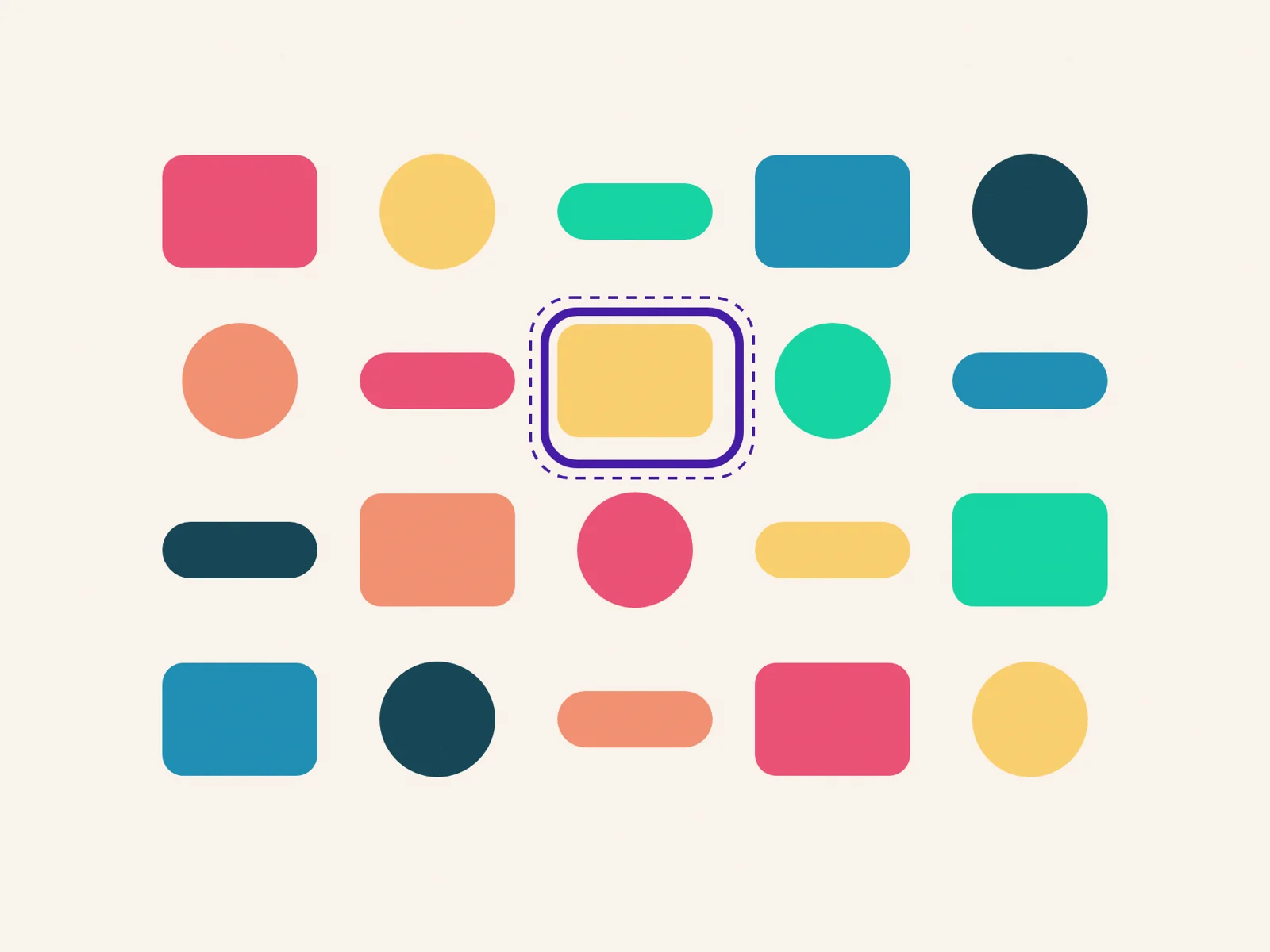
The focus state deserves special attention. Keyboard users rely on it to know where they are. It should be clearly visible against every background the component appears on, and consistent across the whole system so people learn it once.
Error states should explain what went wrong and how to fix it, not just turn a border red. Colour alone is never enough, because some people cannot distinguish it.
Fix it once in the component, and the fix travels everywhere the component is used.
Write down keyboard behaviour
Every interactive component should document how it works with a keyboard. Which key opens a menu? How does focus move inside a dialog, and where does it return when the dialog closes? What happens when someone presses Escape?
These details are easy to get wrong and hard to discover later. Writing them next to the visual design means designers, engineers and testers share the same expectations from the start.
Contrast and colour in every theme
Many products now support light and dark themes, and some brands use several background colours. A component that passes contrast on white can fail on a coloured panel or in dark mode.
Define colour tokens that are tested in every theme, and use those tokens inside components. Then the component remains readable wherever it appears, without each team having to check contrast again.
Automate the checks you can
Automated tests can catch a large share of common issues: missing labels, insufficient contrast, invalid attributes and broken focus order in simple cases. Running them against the component library on every change stops regressions before they reach the product.
Automation has limits. It cannot tell you whether a flow makes sense to someone using a screen reader, or whether instructions are clear. Testing with people who use assistive technology remains essential, especially for key journeys.
An example: the dialog
Dialogs are one of the most commonly broken components. An accessible dialog moves focus inside when it opens, keeps focus within it while it is open, closes with the Escape key, and returns focus to the element that opened it when it closes. It has a clear title that screen readers announce, and a visible close button.
Building all of that once in the system means every pop-up, confirmation and form modal across the product behaves correctly, without each team having to remember the details.
What good documentation includes
For each component, document its purpose, its states, its keyboard behaviour, its accessible name and any content guidelines, such as how to write error messages or button labels. Include examples of correct and incorrect use.
Good documentation is short and practical. People should be able to find what they need while they are working, not after reading a long manual.
Make it everyone’s job
A design system can make accessibility easier, but it cannot make it automatic. Teams still need to use components correctly, write clear content and test real journeys.
The best results come when accessibility is part of how the system is reviewed and documented, not a separate specialism. When the default is accessible, doing the right thing becomes the easy path.
Start here
- Design focus, error and disabled states for every interactive component.
- Document keyboard behaviour next to the visual design.
- Test colour tokens in every theme and background.
- Automate common checks, and still test key journeys with people.